
TABLE OF CONTENTS
- Introduction
- Accessing Check Patient
-
- Understanding the Results
- Processing Time
- When to Use Check Patient
- Important Information
- FAQs
- Additional Support
Introduction
This article explains how to use the Check Patient feature in Ardens Manager to understand why a patient is included or excluded from a report. This helps users validate data, investigate discrepancies, and gain confidence in how reports are calculated.
Background
When reviewing dashboards and reports, users may need to understand why a specific patient appears (or does not appear) in a report.
Previously, this required manually reviewing report rules and comparing them against the patient record in the clinical system. This could be time-consuming and difficult, particularly for complex reports.
The Check Patient feature provides a faster and more transparent way to review this information by analysing a single patient against the report logic.
How Ardens Can Help
Ardens Manager includes the Check Patient feature to give full visibility into how report logic applies at an individual patient level.
Using this feature, you can:
- Identify why a patient is included or excluded from a report
- View how each rule and criteria has been applied
- See the specific activity (e.g. codes, appointments) contributing to the result
- Investigate data quality issues more efficiently
This allows users to quickly validate figures and better understand dashboard outputs without needing to manually interpret complex rules.
Accessing Check Patient
You can access the Check Patient feature in two ways:
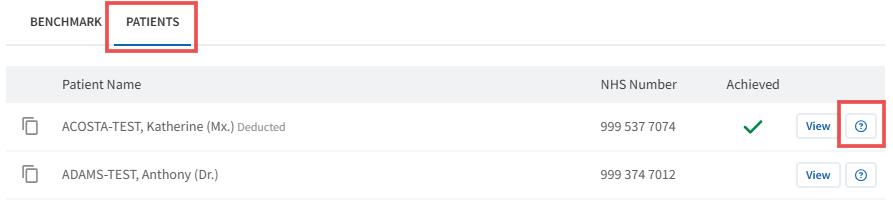
From the Patient List
- Open a report and navigate to the PATIENTS tab
- Locate the patient
- Click the Check Patient (?) icon next to the View button
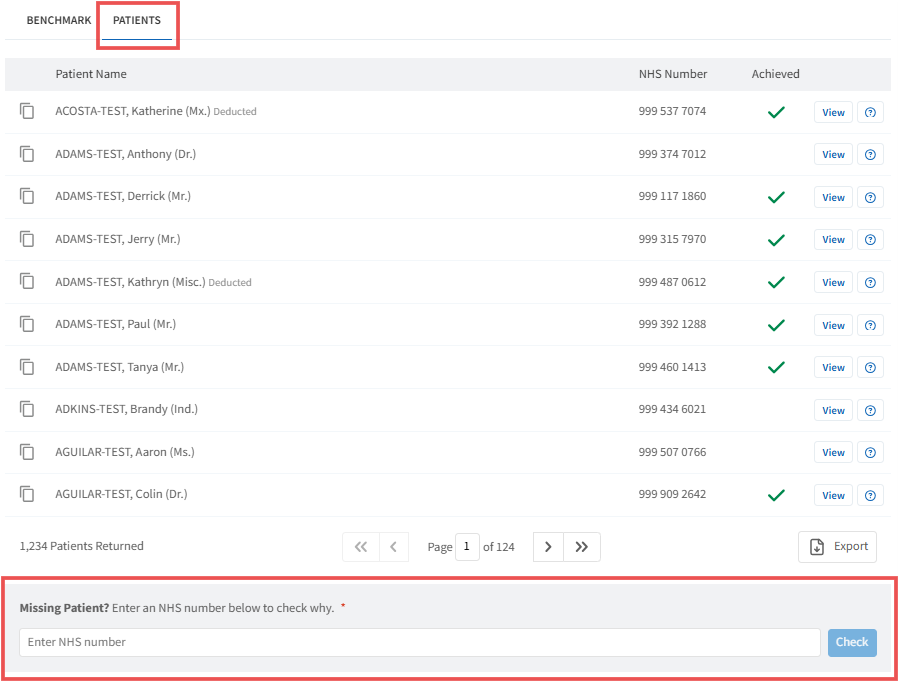
Search for a Patient
- Below the patient list, enter an NHS Number
- This allows you to check a patient who may not appear in the report
Understanding the Results
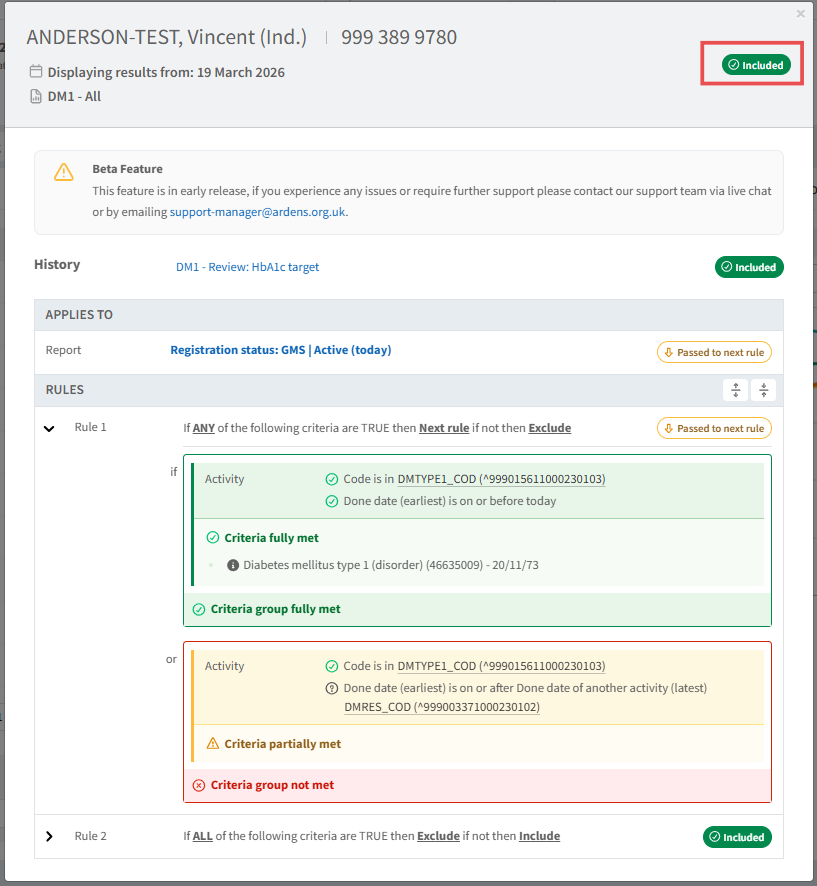
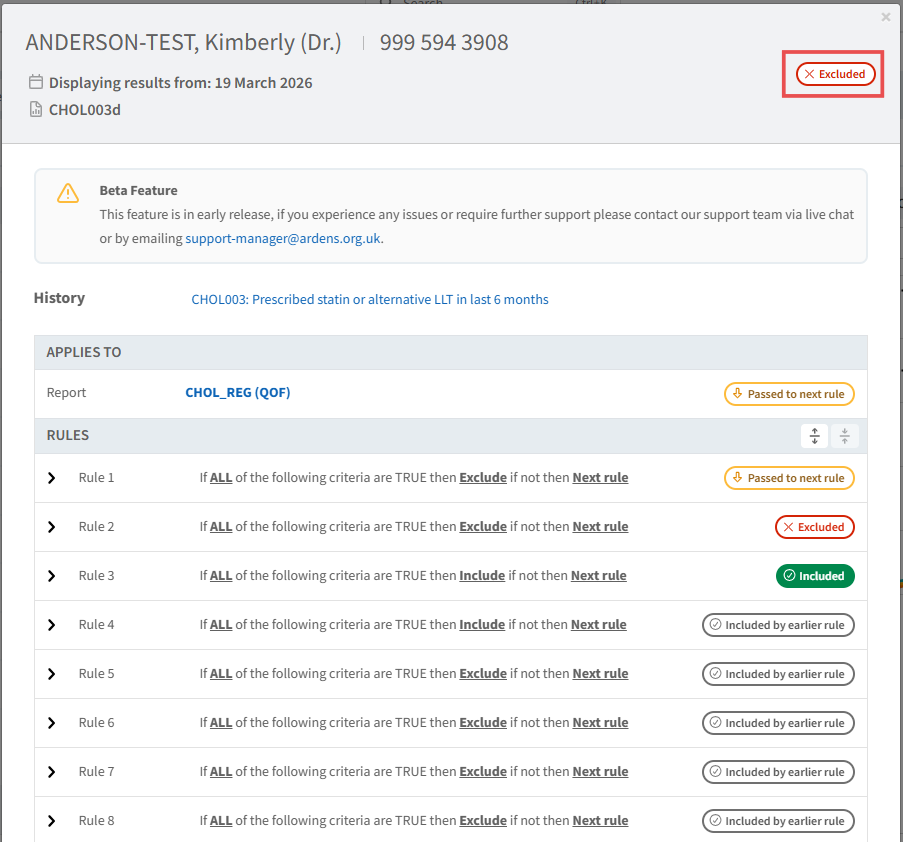
When Check Patient is opened, a detailed analysis screen will be displayed.
Summary Panel
At the top of the screen, you will see:
- Patient details
- The report being checked
- Whether the patient is Included or Excluded
Applies To (Initial Check)
This shows whether the patient meets the basic eligibility for the report:
- Passed to next rule – patient meets initial criteria
- Excluded – patient does not meet the baseline requirements
Rule Analysis
Each report rule is assessed individually. For each rule, you will see an outcome:
- Included
- Excluded
- Passed to next rule
- Included/Excluded by earlier rule
This helps you understand exactly where a patient meets or fails the report logic.
Criteria Breakdown
Within each rule, you can view the detailed criteria. Each criteria will show:
- Met – requirement fully satisfied
- Partially met – some conditions met
- Not met – requirement not satisfied
Where criteria are met, additional detail will be shown, such as:
- Clinical codes recorded
- Appointment details
- Event dates
- Organisation where activity was completed
This allows you to clearly see what data is contributing to the result.
The below screenshots show examples of inclusion and exclusion outcomes.
Processing Time
Check Patient runs a real-time analysis for the selected patient and report.
- The process typically takes a few seconds
- The rules will appear greyed out whilst the analysis is completed.
When to Use Check Patient
You may find this feature useful when:
- A patient appears unexpectedly in a report
- A patient is missing from a report
- Validating contract activity
- Investigating data quality issues
- Explaining figures to colleagues or commissioners
Important Information
- The analysis is based on the report logic and data at the time of the report run
- Results reflect how the report is calculated within Ardens Manager
- Patient data must be available within your organisation’s dataset
FAQs
1. Can I check a patient who is not in the report?
Yes. You can enter an NHS number to check why a patient is excluded from the report.
2. Does this update the report?
No. Check Patient is a read-only tool used for analysis and does not change report results.
3. Why does it take a few seconds to load?
The feature runs a real-time analysis of the patient against the report logic, which may take a few seconds to complete.
4. Can I use it for all reports?
Check Patient is available on supported reports where patient-level analysis is applicable.
Additional Support
To further your understanding of the Ardens Manager platform:
- Book training for your GP Practice, PCN or ICB.
- Complete the Getting Started with Ardens Manager academy module.
- Explore more helpful support articles.
- Contact our support team - support@ardens.org.uk