
TABLE OF CONTENTS
Introduction
This article explains how to use the Ardens Manager Women’s Health dashboard to monitor menopause and perimenopause activity across your practice, PCN or ICB. By the end of this guide, you will be able to use dashboard insights to support service planning, review performance, identify gaps, and drive quality improvement.
Background
Menopause and perimenopause care is a key area of focus within primary care, with guidance from the National Institute for Health and Care Excellence (NICE) recommending structured assessment, appropriate HRT prescribing, and ongoing review.
For practices, PCNs and ICBs, it is important to:
- Understand prevalence within their population.
- Monitor HRT prescribing patterns.
- Ensure appropriate follow-up and safety monitoring.
- Identify unwarranted variation.
This article is suitable for:
- Practice Managers
- GP Partners
- Clinicians with a specialist interest
- PCN Clinical Directors
- ICB leads
- Data & quality improvement leads
How Ardens Can Help
The Ardens Manager Women’s Health dashboard works alongside the existing Ardens Clinical resources to support high-quality menopause and perimenopause care by providing population-level insight, performance monitoring, and service oversight.
To learn more about the Ardens Clinical resources, access the support articles below:
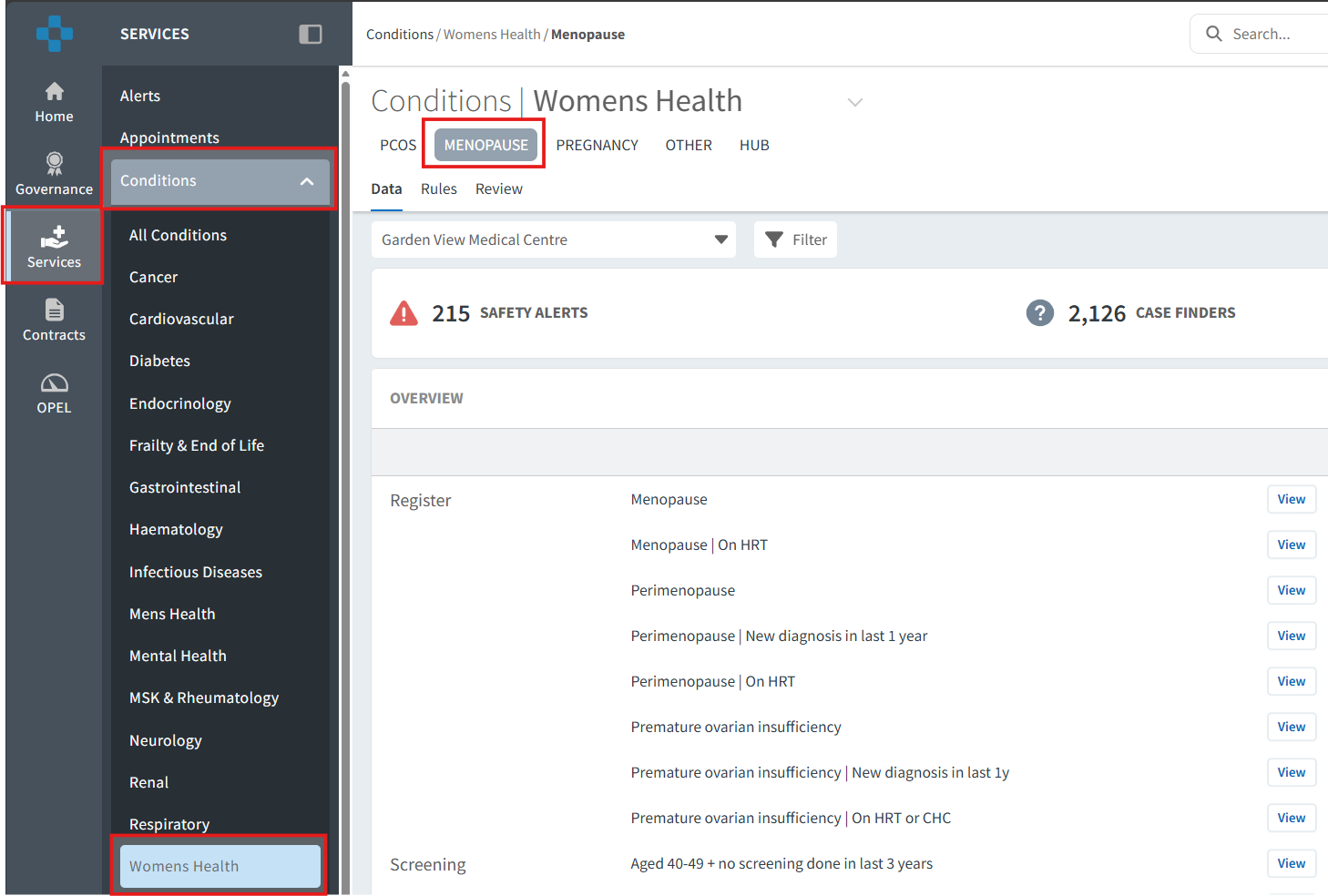
Access the Dashboard
- Log into Ardens Manager.
- Go to Services on the left-hand pane.
- Open to Conditions folder.
- Click on Womens Health.
- Click on the 'Menopause' tab.
Plan & Forecast Demand
The Overview section of the Menopause tab enables organisations to analyse coded registers, identify population trends, and plan workforce and recall activity accordingly.
Understand Your Population
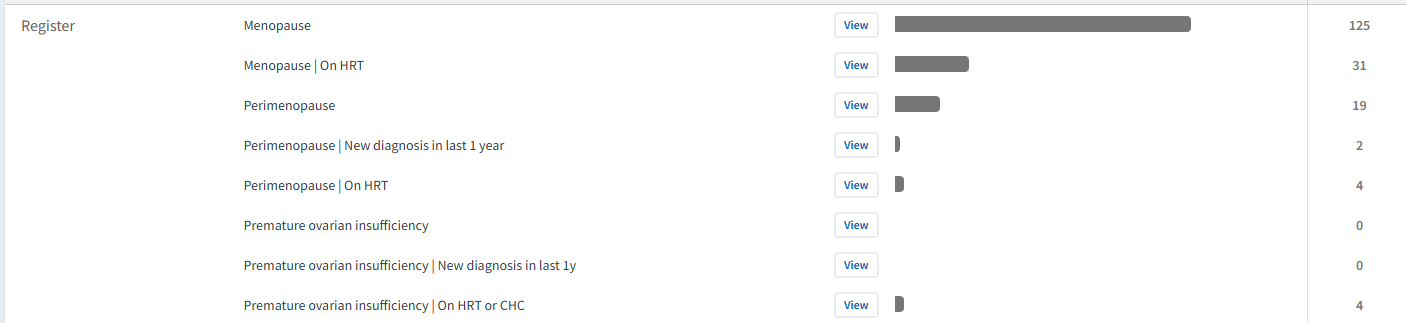
The registers provide visibility of patients coded with menopause and perimenopause, helping you understand:
- Recorded prevalence within your organisation.
- Coding patterns.
- The size of the cohort requiring review or monitoring.
This insight supports informed service planning and helps ensure capacity aligns with patient needs.
To review registers:
- Click the View button next to the required register report.
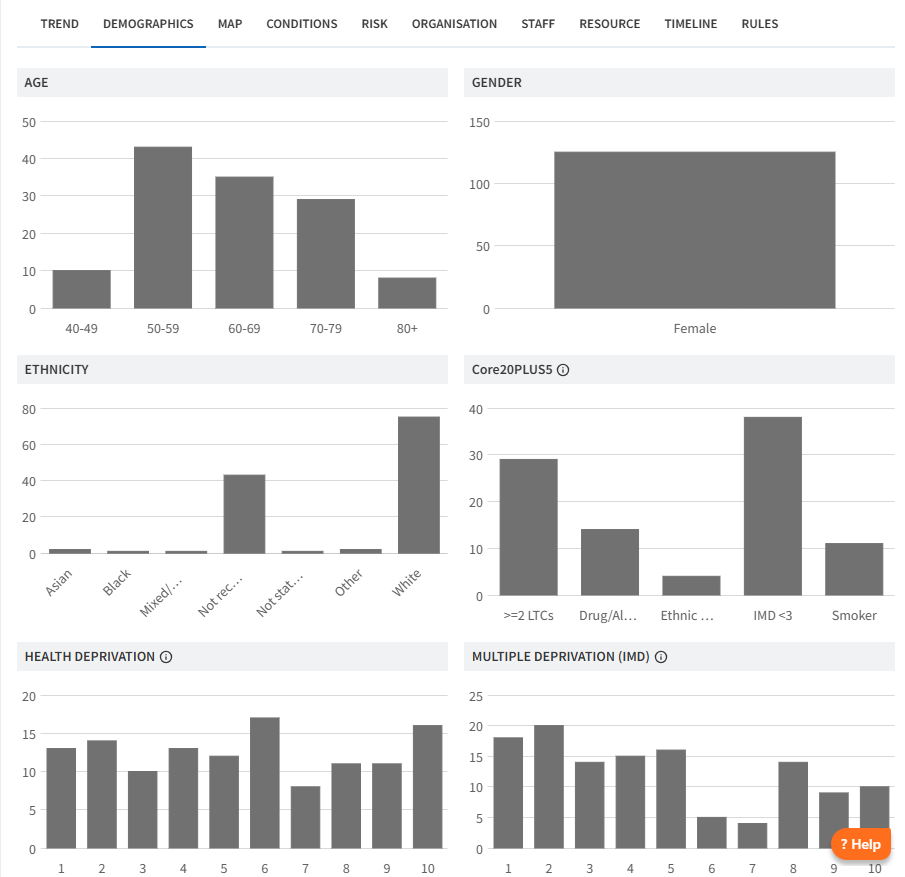
- Review the Demographic tab to understand age distribution and deprivation.
- Review the Conditions tab for breakdown by long-term condition and multimorbidity.
- Review the Risk tab to identify patients in vulnerable or higher-risk groups.
Further insights enable organisations to review diagnosis patterns by clinician and by patient geographical location, supporting identification of variation and equitable access to care.
Analyse Trends
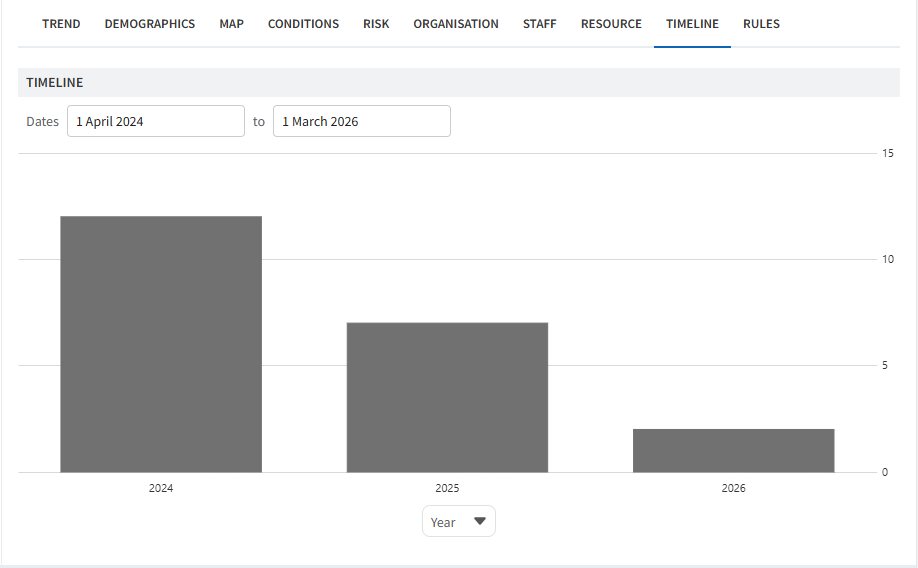
Understanding how registers change over time enables organisations to anticipate future workload and workforce requirements.
To analyse trends:
- Click the View button next to the required register report.
- Click on the Timeline tab.
- Below the timeline, select the drop-down field and choose Year (or another timeframe).
This allows you to:
- Analyse trends in diagnosis rates.
- Identify an increase in demand.
- Inform capacity considerations vs potential demand.
Monitor Activity
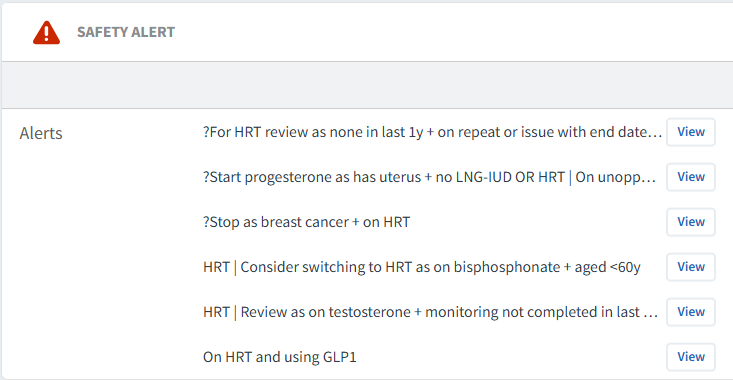
The dashboard provides tools to support clinical governance and patient safety, including Safety Alerts, Case Finders, and Performance Indicators.
Safety Alerts
The Safety Alerts highlight patients who may require urgent review or action, such as:
- Starting or stopping treatment.
- Incomplete medication monitoring.
- Other potential prescribing risks.
For each report:
- Click View.
- Select PATIENTS tab.
- Review each patient record and take appropriate action.
Case Finders
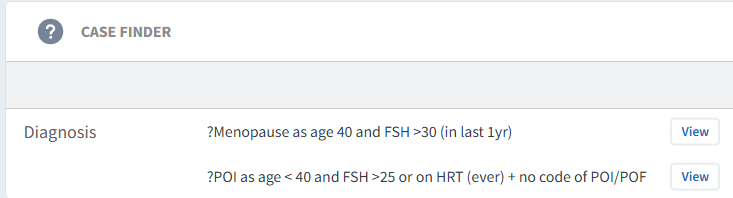
The Case Finder reports identify patients who may have Menopause or Premature Ovarian Insufficiency (POI) but do not have a formal diagnosis code recorded. This may be due to incorrect or missed coding. These reports support proactive case identification and improve register accuracy.
For each report:
- Click View.
- Select PATIENTS tab.
- Review each patient record.
If menopause or POI is confirmed:
- Add the appropriate diagnosis code in the clinical system.
- This will move the patient onto the register and remove them from the case finder.
If inclusion is due to a data error:
- Amend or remove the incorrect coding in the clinical system.
Performance Indicators
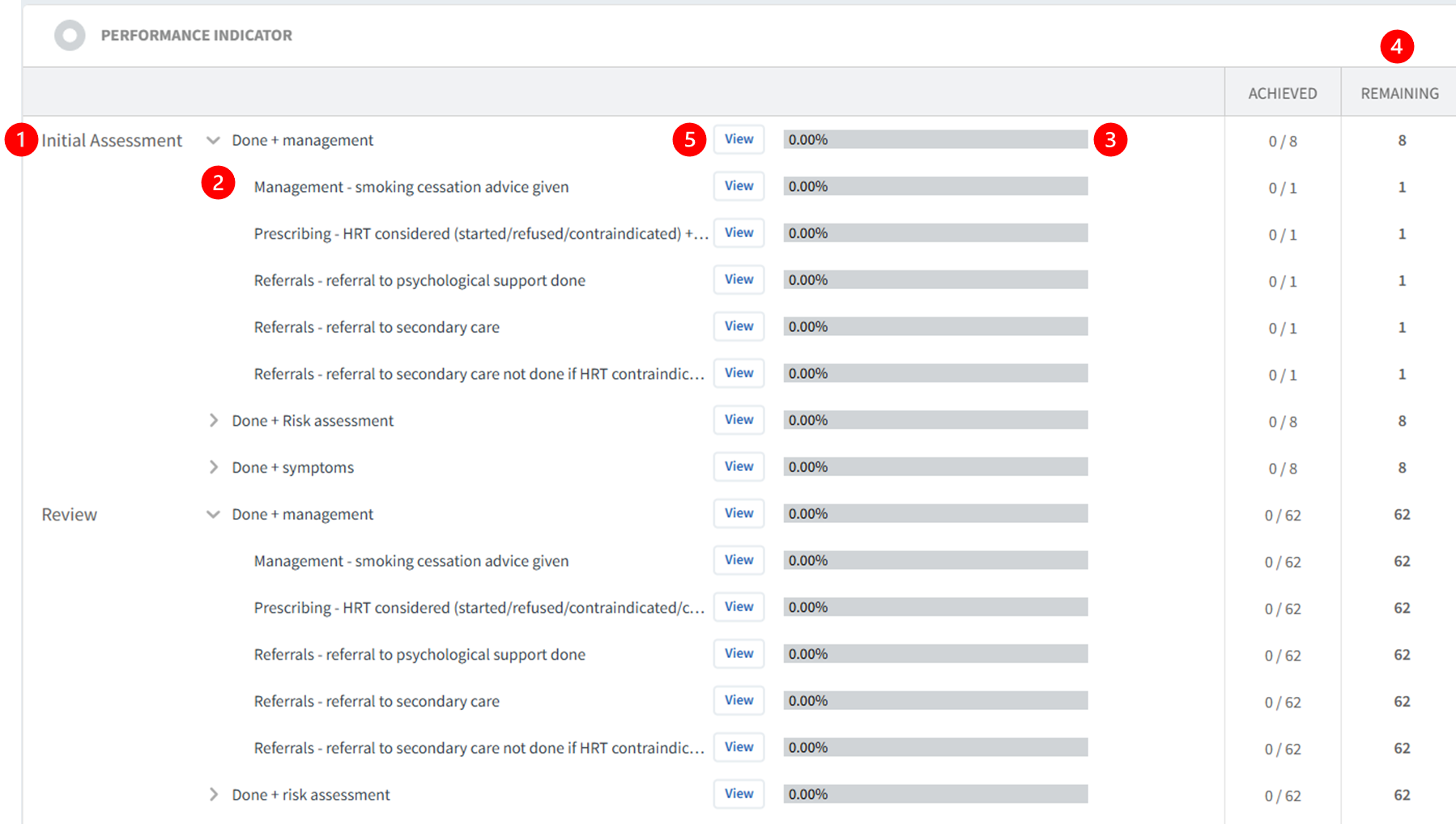
The Performance Indicator section enables tracking of key care components for both initial assessments and ongoing reviews.
Reviewing performance indicators:
- Indicators are categorised by Initial Assessment and Review.
- Click Done+ chevon to review the activity breakdown.
- Green performance bars show the percentage of completion across the cohort.
- The Remaining column highlights patients who have not yet received specific care elements.
- Click View to access the PATIENTS tab.
- Above the patient list, select Show remaining only to review outstanding care.
 Please note: Patient data can be exported. Refer to this support article for further information.
Please note: Patient data can be exported. Refer to this support article for further information. Additional Support
To further your understanding of the Ardens Manager platform and Womens Health resources:
- Book training for your GP Practice, PCN or ICB.
- Explore more helpful support articles.
If you require any further assistance on the process above, please contact the Ardens Manager Support Team on: support@ardens.org.uk