
TABLE OF CONTENTS
Introduction
The Patient View feature provides a comprehensive overview of all reports linked to an individual patient, eliminating the need to open multiple reports across the platform. It brings together safety alerts, registers, and outstanding actions, supporting a more efficient and holistic approach to patient reviews.
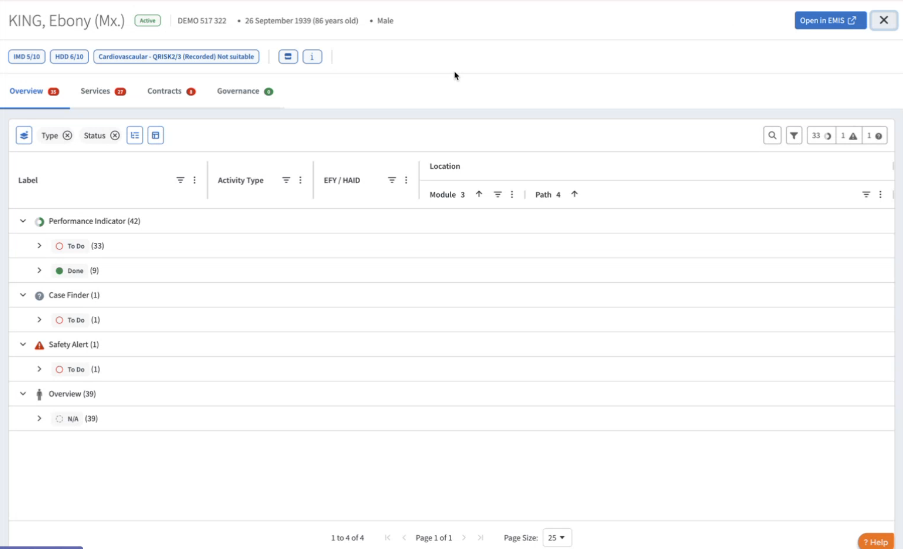
- Log in to Ardens Manager.
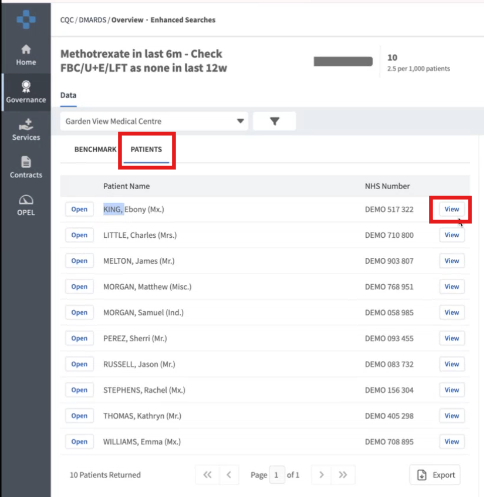
- Locate the report you wish to review.
- Open View to open the report breakdown.
- Select the Patient tab.
- Click View next to the patient whose information you want to access.
When the Single Patient View opens, it loads with default settings. These can be customised at any time to suit your preferences.
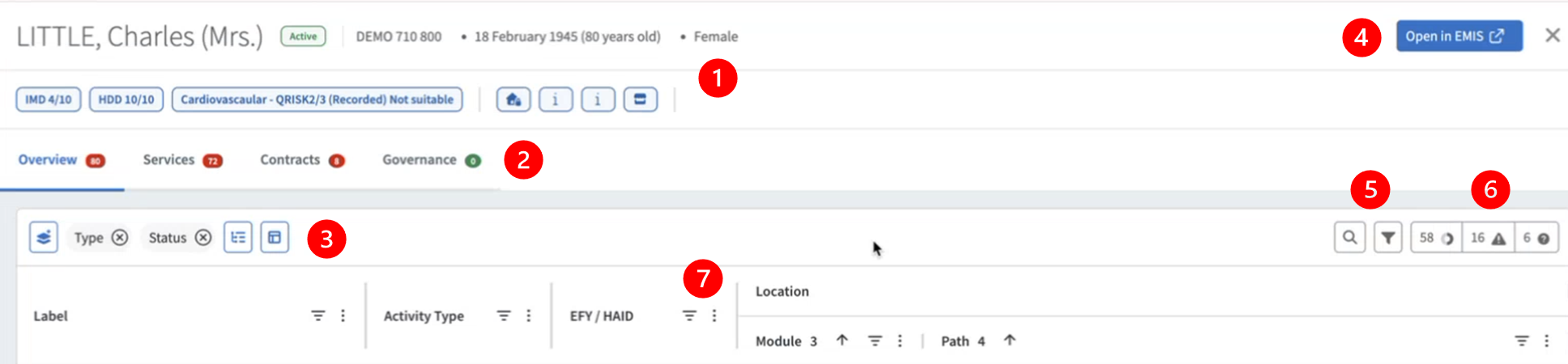
(1) Patient Details: are displayed at the top of the screen and include key information such as NHS number, date of birth, gender, risk scores, and alerts.
(2) Category Filters: allows you to refine the information shown for each patient. The default Overview option displays all reports associated with the patient across all dashboards. You can further filter by specific dashboard categories, such as Services or Contracts, to show only relevant reports.
(3) Quick filters: controls how reports are displayed. By default, reports appear in a collapsed view grouped by type and status; however, you can change how the collapsed view is displayed by selecting the relevant icon and choosing your criteria, use the quick toggle to automatically expand all rows, and customise which columns are shown by selecting the column layout icon.
(4) Accessing the Patient Record: opens the patients record directly in your clinical system (EMIS or SystmOne).
(5) Search and Filter Options: use the search icon to locate specific reports within the patient view. Select the filter icon to refine your view based on your preferences.
(6) Outstanding Work: select the corresponding quick filter icons to view outstanding work, grouped by performance indicators, safety alerts, or case finders.
(7) Column Sorting and Filtering: each column can be sorted or filtered by selecting the filter or ellipsis icon, providing additional actions and display options.
The Single Patient View can be customised to suit your preferences. The default view displays reports in a grouped format.
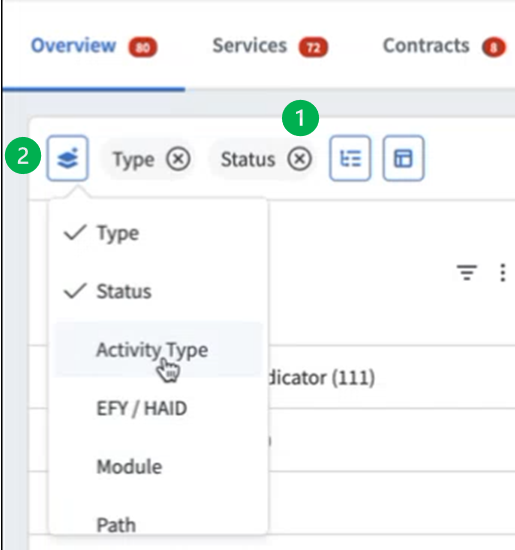
(1) If you prefer to see the reports as a single table, you can remove the pre-set filters by clicking X.
(2) Adjust groupings by selecting the grouping icon and choosing your preferred categories.
To filter the content within columns:
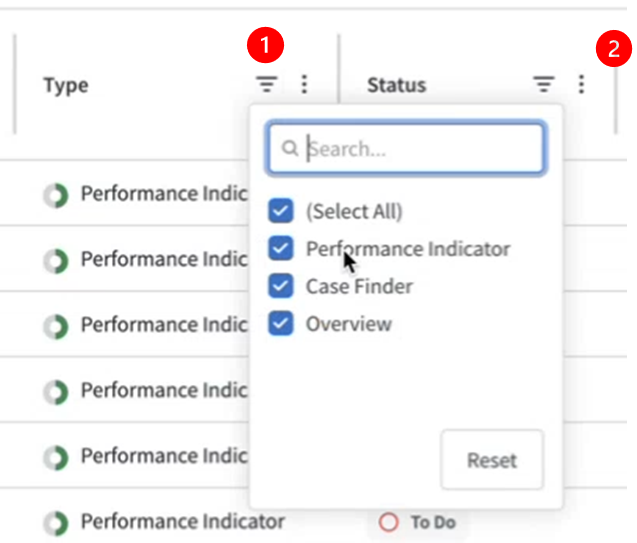
(1) Click the column filter icon to select which report types are displayed.
(2) Resize columns by clicking and dragging the column header dividers.
Further customisation is available through the ellipsis menu, where you can sort data, pin columns to the right-hand side of the screen, auto-size columns to fit your display, choose which columns are visible, or reset columns to their default settings.
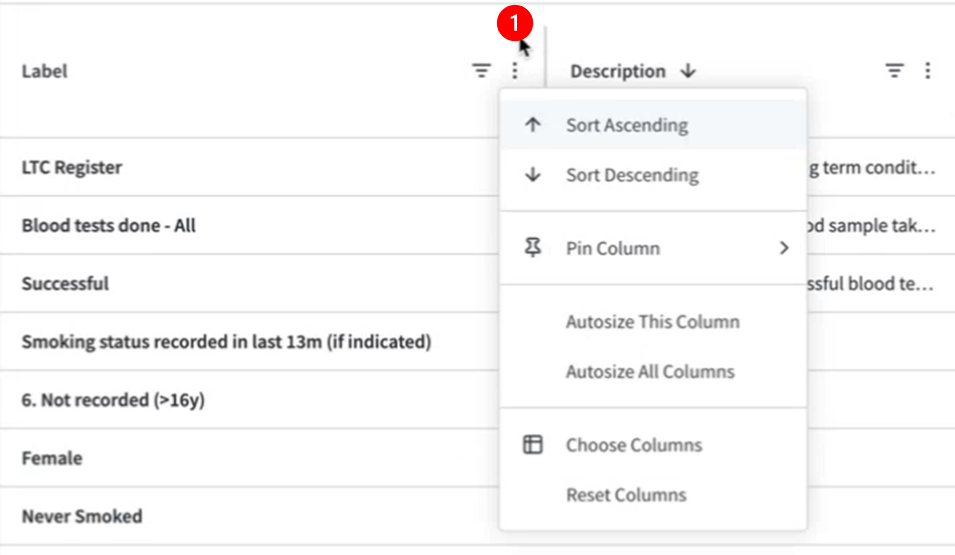
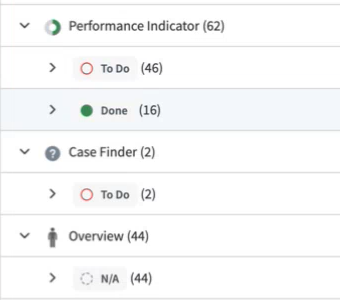
The Single Patient View provides a clear overview of all reports associated with a patient, making it easy to see completed work, outstanding actions, and register inclusion.
Each report is grouped into one of the following status categories:
- To Do – indicates that the patient has outstanding work on an indicator that requires action.
- Done – shows that the patient has met the requirements for an indicator, and no further action is needed.
- N/A – indicates the patient appears on a report, such as a register, but no action is required. This simply highlights that the patient is included in that report.
If you require any further assistance on the process above, please contact the Ardens Manager Support Team on: support@ardens.org.uk