
TABLE OF CONTENTS
Introduction
The Operational Pressures Escalation Levels (OPEL) Framework, originally developed for secondary care, is now being used by some areas to track and manage operational pressures in general practice. Practices are asked to submit their current OPEL status to indicate their level of operational pressure, helping ICBs monitor pressures across the area and provide targeted support.
The OPEL module in Ardens Manager makes it simple for practices to record and update their status, supporting safe workload management and system-wide visibility.
OPEL Status
The OPEL status of a practice can be indicated as follows:
- Green - Normal service: The practice is operating as usual, with manageable demand and no significant issues.
- Amber - Moderate pressure: The practice is experiencing increased demand or some challenges, but services are still being delivered safely.
- Red - Severe pressure: The practice is under significant strain, struggling to maintain normal services. Some routine work may be delayed or deferred.
- Black - Extreme pressure: The practice is unable to safely deliver many services. Urgent support or intervention is needed.
Each practice's OPEL status can be shown in two ways:
- Submitted Status: Entered manually by the practice using the integrated form in Ardens Manager.
- Calculated Status: Automatically generated by Ardens Manager on a weekly basis.
OPEL Dashboard
Access the OPEL Dashboard using the following steps:
- Log into Ardens Manager.
- From the left sidebar, click on the OPEL Module.
- Click on the OPEL Pressure Monitoring dashboard.
 Please note: that this will need to be activated for you by a member of the Ardens team. Please contact support@ardens.org.uk to get setup.
Group View
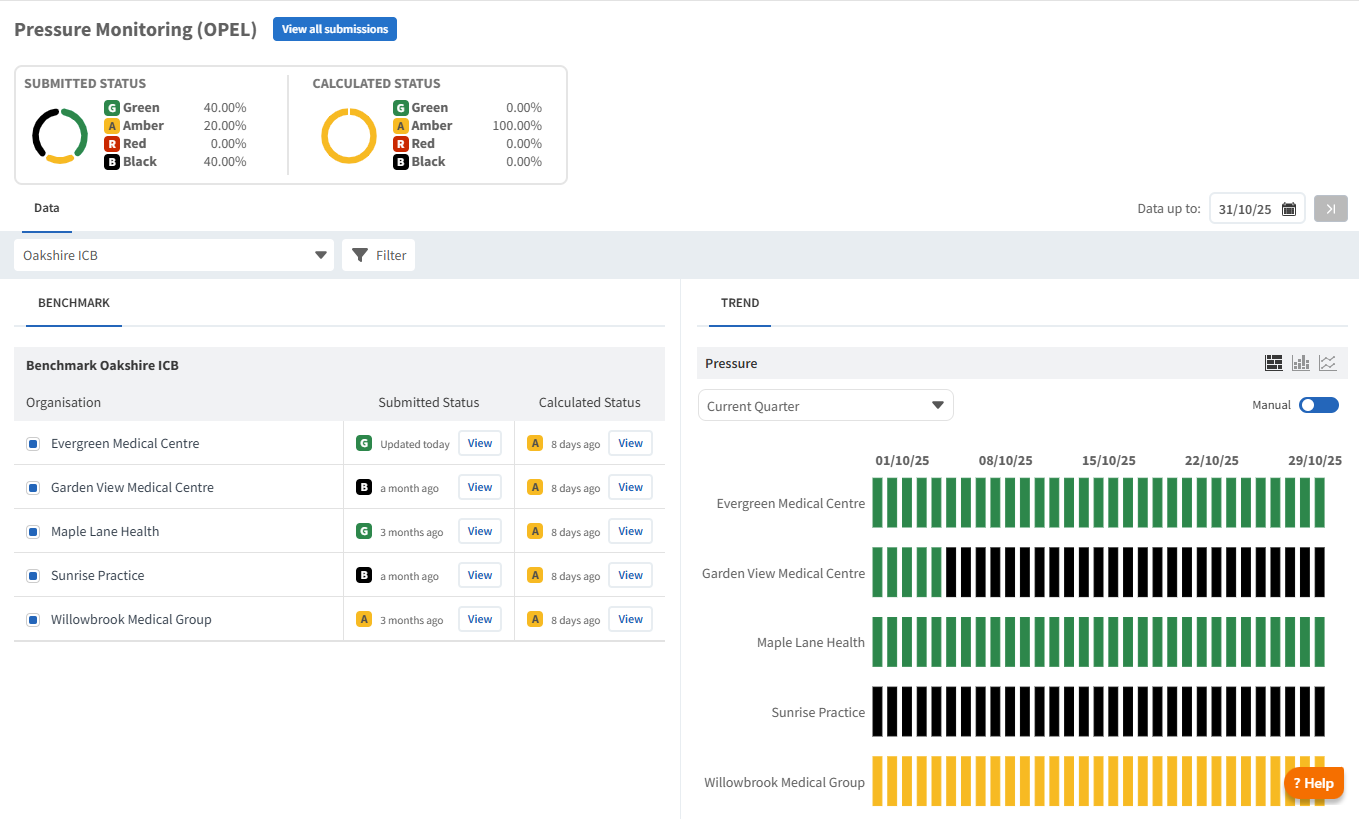
The Group View in the OPEL Dashboard provides an overview of operational pressures across practices, displaying the percentage of practices in each OPEL status based on both manual and automated data.
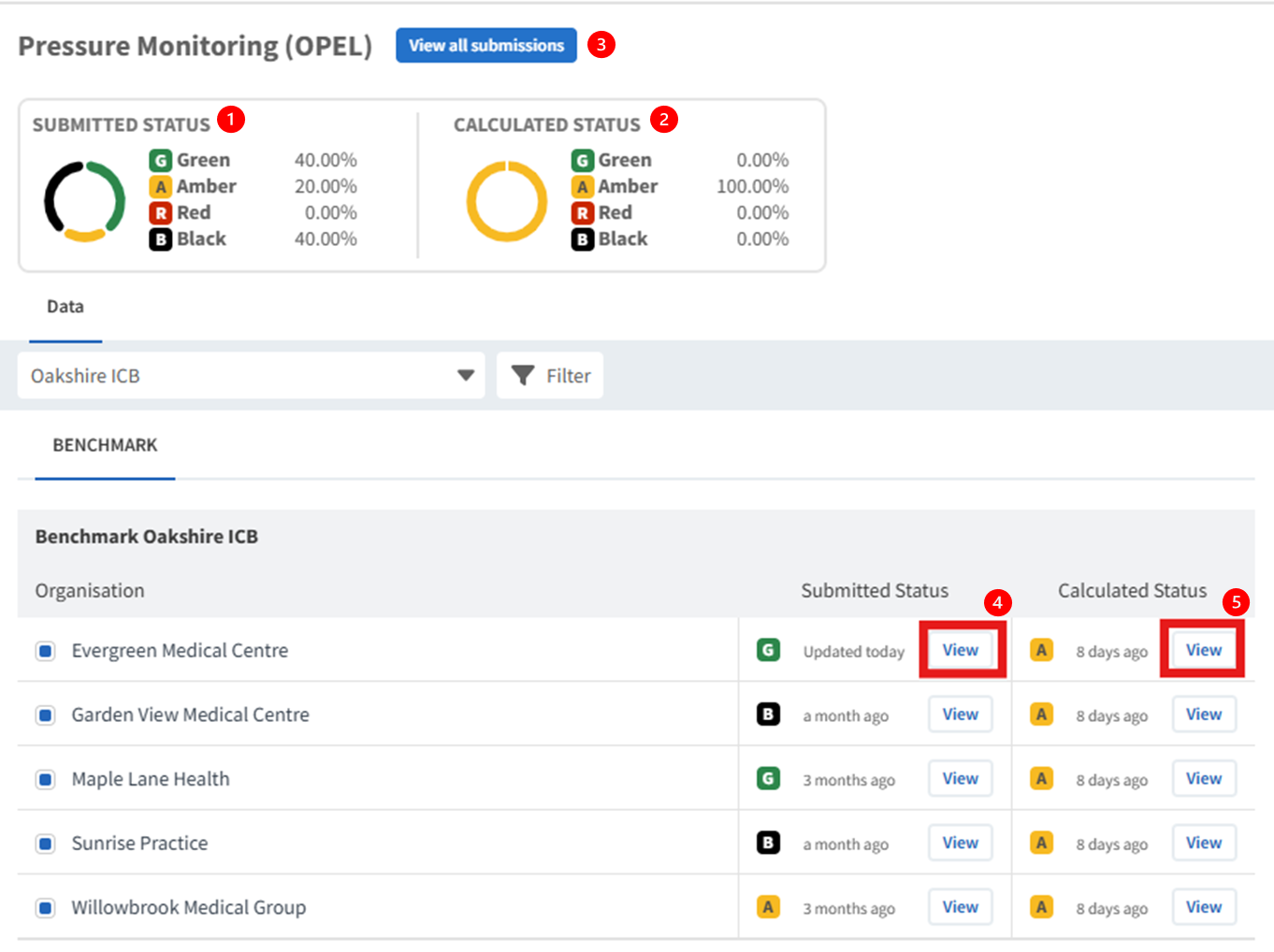
The dashboard presents data in several ways:
(1) The current submission status for the ICB area, displaying the percentage of practices in each status.
(2) The current calculated status for the ICB area, displaying the percentage of practices in each status.
(3) All manually submitted statuses of practice. Use this section to review submissions for approval or rejection.
(4) Clicking View will display details of the submitted status for each individual practice. This action will open the completed form and display any comments added during the review process.
(5) Clicking View will display the details of the calculated status for each practice. This will provide a breakdown of how the status was determined based on the scoring categories.
⚠️ Please note: comparison timeframes are only available in the line chart format.
Practice View
When you log in as a practice, your practice is automatically selected on the dashboard. If data sharing is enabled, you can view the current status of other practices using the 'Benchmark' tool. Your dashboard also allows you to view both the manual submitted status and the calculated status.
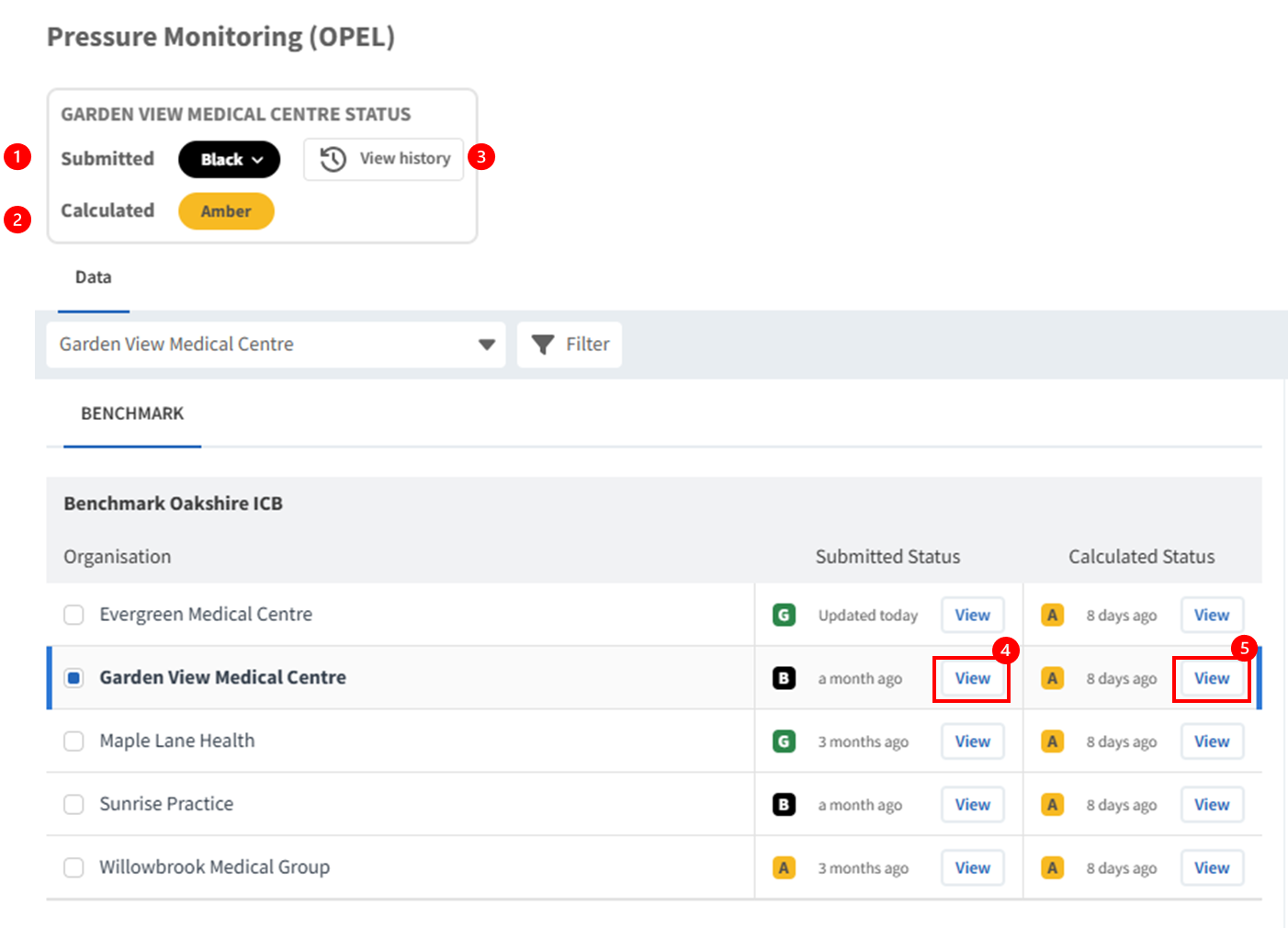
The dashboard presents data in several ways:
(1) The practice's current submission status. Click on the status to update it.
(2) The practice's current calculated status, which is automatically updated weekly.
(3) View the history of previous status submissions. From this section, you can view or edit your submissions.
(4) Click on View to display the details of your current status. This action will open the completed form and display any comments added during the review process.
(5) Click on View to review the details of your calculated status. This will provide a breakdown of how the status was determined based on the scoring categories.
⚠️ Please note: Click the View button in each row to see the status of other practices in your data-sharing group.
Monitor Trends
Each status update can be tracked using the trend chart.
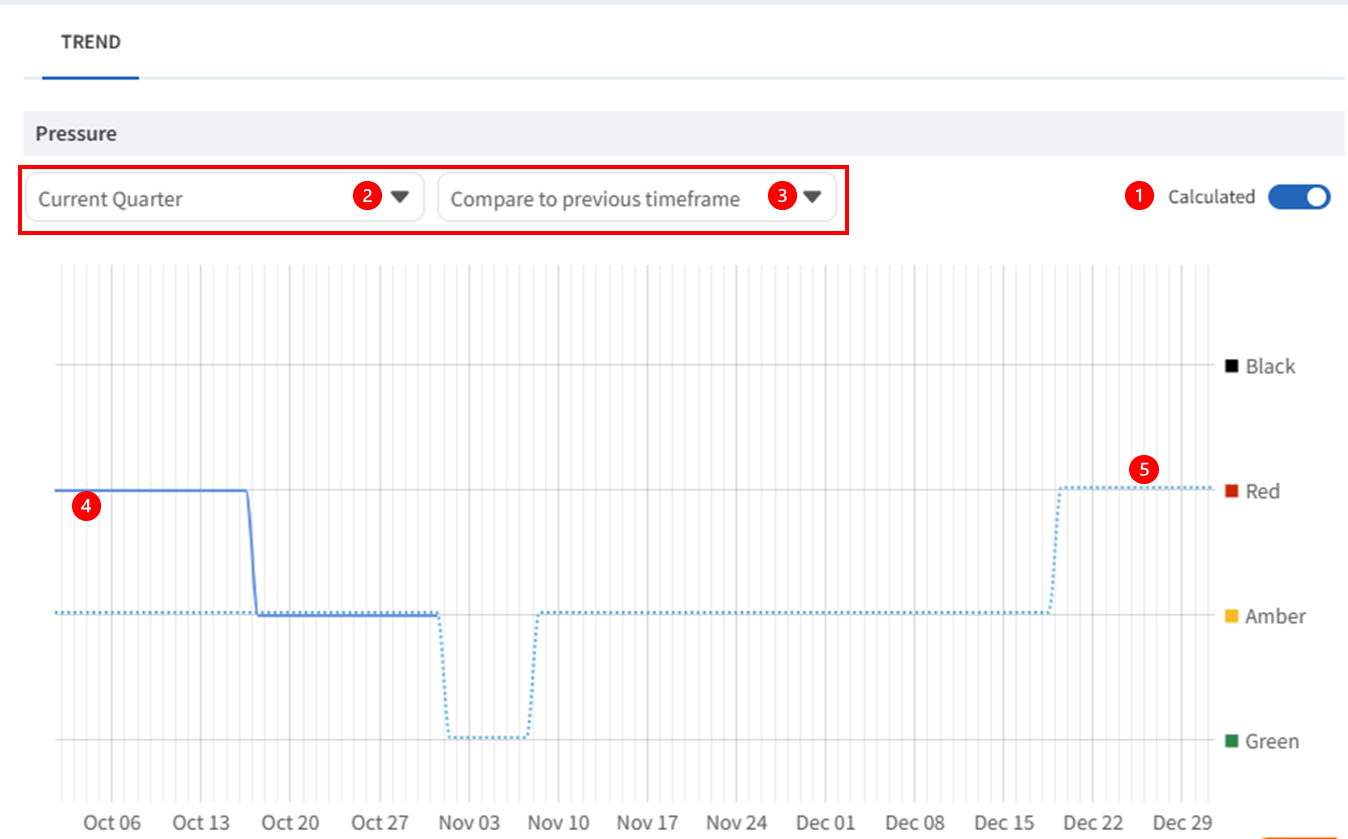
(1) Use the toggle to switch between calculated and submitted status data.
(2) Set the timeframe you wish to monitor using the dropdown menu.
(3) You can also add a comparison timeframe to compare your data.
(4) The chart will display the data, with the solid line representing the current selection.
(5) Dotted lines indicating the comparison timeframe.
Calculated Status
Ardens Manager automatically calculates the OPEL status for practices and updates it weekly. This status is determined based on a points system using appointment data.
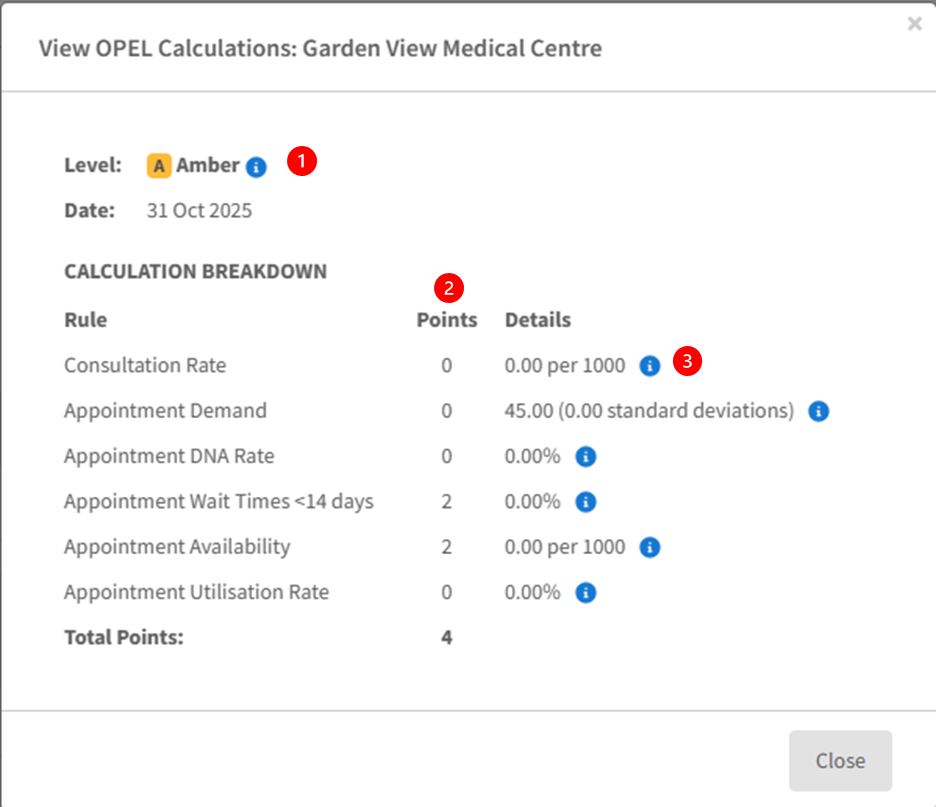
(1) Click the information icon (i) to view the point thresholds for each status.
(2) View the point totals for each category that contribute to the overall score.
(3) Click the information icon (i) for a detailed breakdown of the scoring thresholds in this report, along with description.
Submitted Status
Manual submissions are made by practices by completing the OPEL status form, with only one submission allowed per date.
Submissions can be initiated either through the Tasks section in Ardens Manager or directly via the OPEL dashboard (as described in the previous section).
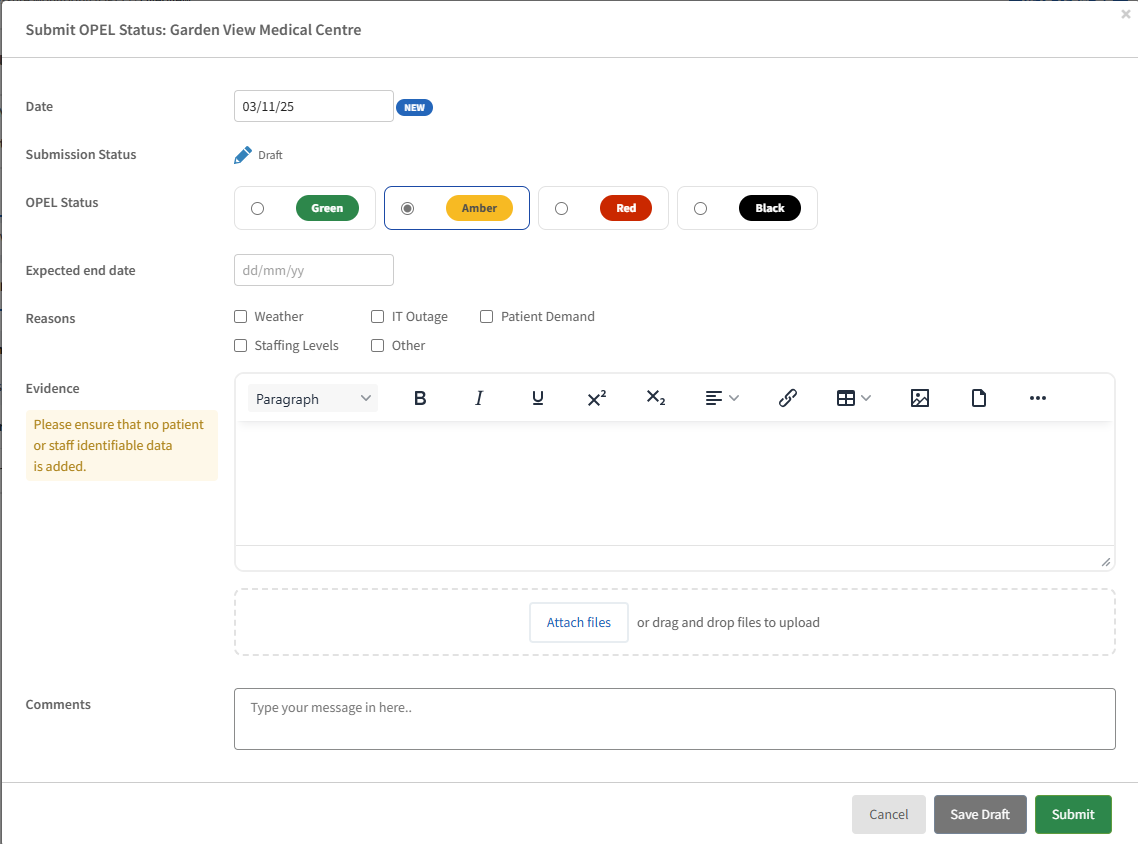
Completing the OPEL Submission form
- Date Picker: Select the date to indicate the OPEL status and the practice's pressure level for that day.
- OPEL Status: Select the pressure level your practice experienced on that date.
- Expected End Date: If you select Amber, Red, or Black as your practice OPEL level, an "Expected End Date" field will appear. Enter the date you expect the situation to return to normal, this helps the ICB understand how long the pressure is likely to last.
- Reasons: Tick the checkboxes that describe why your practice is under pressure. You just select at least one reason if the OPEL level is Amber, Red, or Black.
- Evidence: Use this field to add any additional information or attachments that may help the ICB to understand the context.
- Comments: Once the submission is finalised, both the practice and the ICB can add comments.
After filling in all the required fields, choose one of the following options to manage your submission:
- Cancel: Closes the form without saving.
- Discard Draft: Deletes the draft completely.
- Save Draft: Saves the draft, allowing it to be reopened and continued later.
- Submit: Locks the draft details and submits it to the ICB for approval.
Submission Status
After the form is completed, the form will display one of the following statuses:
- Submitted for Approval: Once the OPEL status is submitted, the form will show a 'Submitted for Approval'. The form details are locked and cannot be edited. Both the Practice and ICB can still add comments and attachments. ICB users cannot change the details, but can choose to Approve or Reject the submission.
- Approved: When the ICB approves the submission, it becomes the practice’s official OPEL status for the selected date. No further edits can be made.
- Rejected: If the ICB rejects the submission, it is returned to the Practice for updates. The Practice can make changes and, if needed, challenge the decision. Once updates are complete, the form should be resubmitted for ICB review using the Challenge button.
- Challenge: When the submission is marked as Challenged, the form details remain locked and cannot be edited. Both the Practice and the ICB can continue to add comments and attachments. The ICB cannot change the details but can still Approve or Reject the challenged submission.
Tasks and Notifications
Tasks
Tasks are automatically created to remind practices to submit their OPEL status regularly. These tasks can be viewed and actioned by clicking on Upload.

Tasks are automatically created to remind ICBs to review and approve/reject submissions from the practice. These tasks can be viewed and actioned by clicking on Review.

Emails
Automated emails are sent to help Practices and Groups stay up to date with OPEL reporting.
For Practices:
- Reminder emails prompt practices to submit their OPEL status regularly.
- If the last status was Green, a reminder is sent 7 days after the last submission.
- If the last status was Amber, Red, or Black, a reminder is sent the next weekday after the last submission.
For Groups:
- Notification emails are sent when a practice submits or re-submits (challenges) an OPEL status of Red or Black.
- Rejection emails are sent to practices when an OPEL submission is rejected by the group.
- Outstanding submission emails remind groups about submissions that still need approval.
Email Setup:
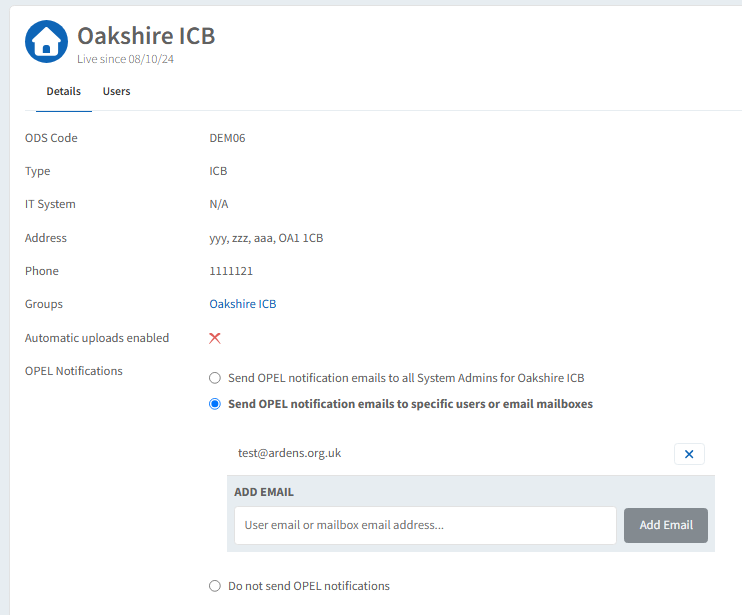
Each organisation with OPEL enabled will have an 'OPEL Notifications' section within the organisation settings, which is editable by a System Admin for the organisation.
Email notifications can be configured to include all System Admins, specific users or mailboxes, or they can be turned off by selecting the appropriate option.
If you require any further assistance on the process above, please contact the Ardens Manager Support Team on: support@ardens,org.uk