
TABLE OF CONTENTS
Background
It is a software package installed on the user's device, allowing direct integration with the instance of EMIS Web or SystmOne being used on that device via the NHS England IM1 pairing integration.
1. Check the Ardens Desktop app is installed and connected- Ardens Desktop runs in the background and links Ardens Manager to your clinical system.
- Look for the Ardens icon in your system tray (bottom right of your screen) to check it it's installed.
- Green indicator = connected successfully.
- Red indicator = not connected. Please make sure EMIS Web or SystmOne is open and if issues continue, see the Troubleshooting section below.
- If Ardens Desktop is not installed, please see installation instructions below.

2. Open a patient record from Ardens Manager
- When viewing a report on Ardens Manager, navigate to the 'Patient' tab to view the Patient List (see viewing patient lists support article).
- Click the View button to the right of any patient's NHS number to open the Patient View.
- Click on Open in EMIS/SystmOne in the top right hand corner.
The patient record will automatically open in EMIS Web or SystmOne.
Initial Installation
1. Download the installation file via this link or from the link on Ardens Manager.
2. Locate and open the downloaded file.
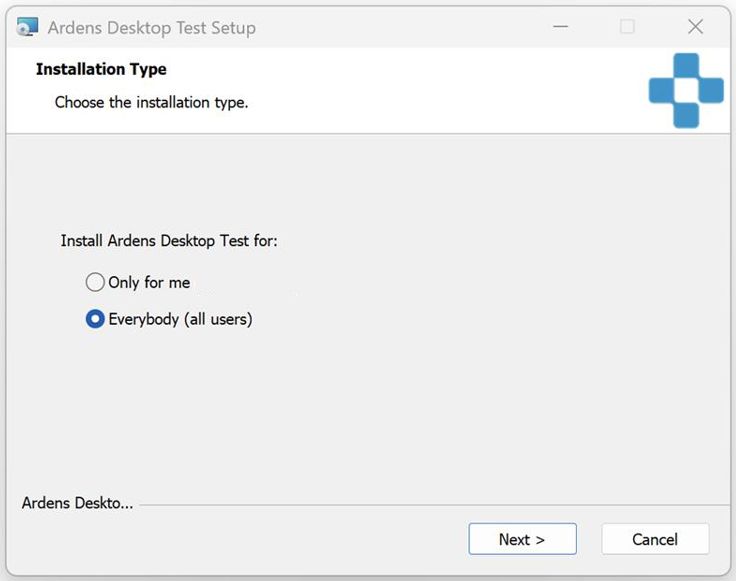
3. Select your installation type:- Only for me: Installs just for your account. Updates are automatic.
- Everyone: Installs for all users on the device. Requires Administrator rights. Updates must be installed manually.
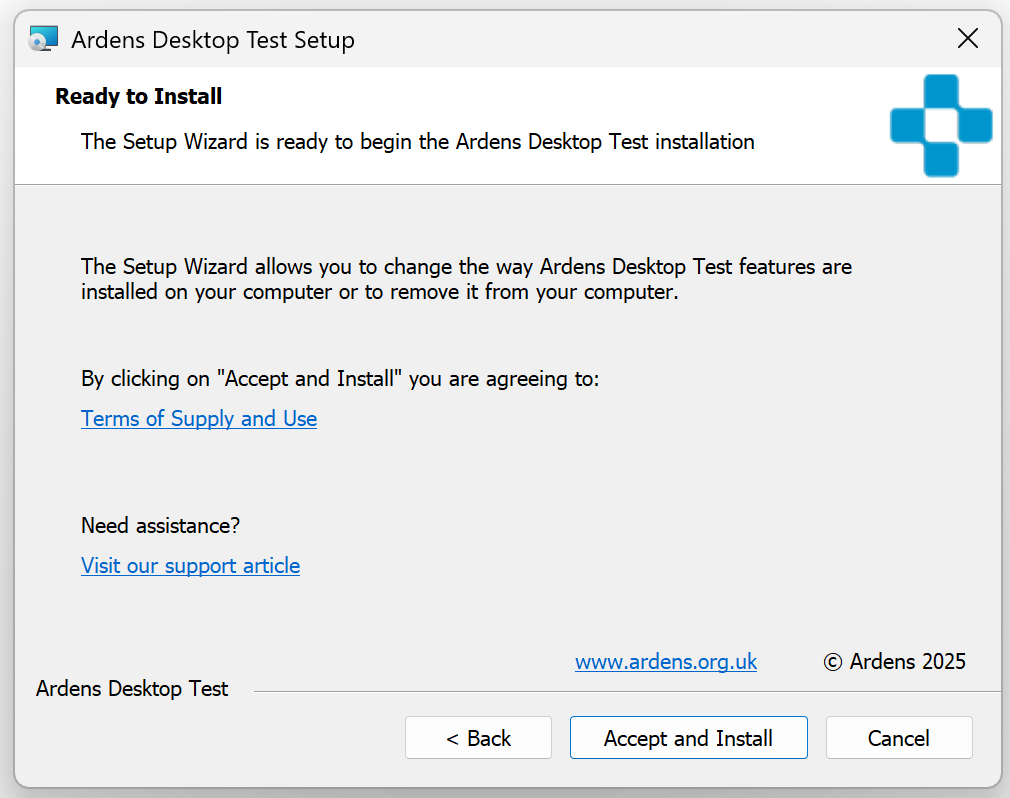
4. Review the Terms of Supply and Use and accept the installation.
5. Once the installation is complete, click Finish.

- No further action is required to connect Ardens Desktop to EMIS Web.

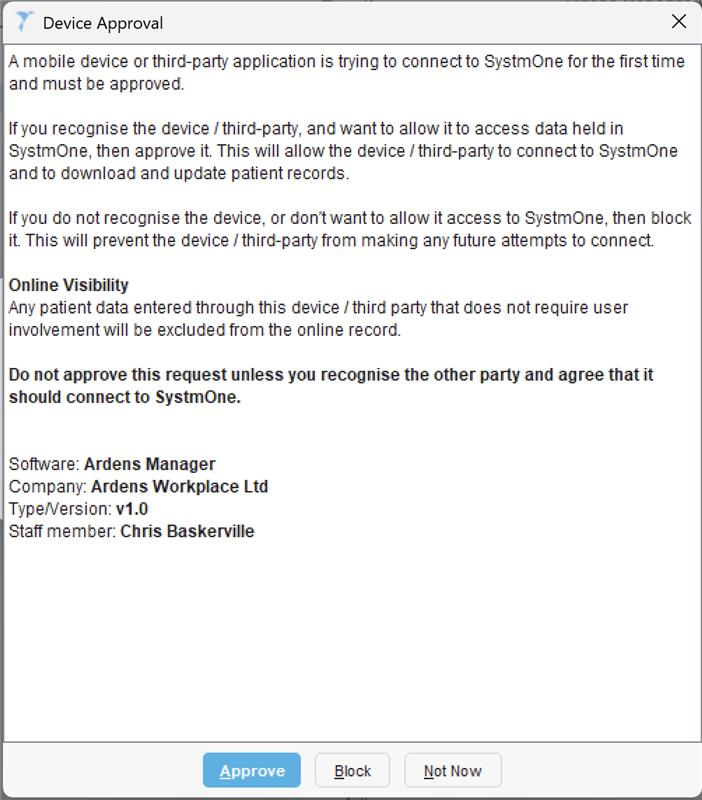
- Once you have completed the initial installation steps above Ardens Desktop will attempt to connect to SystmOne. On the first connection, you will be required to approve the device connection in SystmOne.
Updates
- If installed Only for me: If during installation you selected the installation type "only for me" Ardens Desktop will automatically update; no action is required from the user.
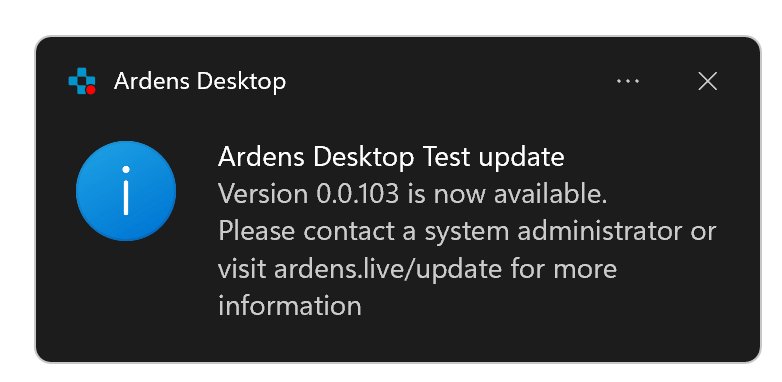
- If installed for Everybody: If during installation you selected the installation type "everybody" Ardens Desktop is unable to automatically update; a pop up (similar to that shown below) will be displayed and a system administrator will need to download and install the latest version.
System Requirements
Ardens Desktop requires the following minimum specifications:
- Windows 10 or 11 (64-bit)
- 8GB Memory
- 10GB Free Storage
- Up to date install of EMISWeb or SystmOne
Governance
The use of Ardens Desktop is governed by our Terms of Supply & Use. Our information governance resources are available on our website.
Ardens Desktop does not store identifiable patient data. Its only interaction with EMIS Web or SystmOne is to open a patient record; it does not currently read from or write to the record.
As with all Ardens products, Ardens Desktop is subject to a strict information governance & clinical safety approach, supported by our external accreditations and regular penetration testing in accordance with industry standards.
Troubleshooting
How can I check the connection status to EMIS Web or SystmOne?
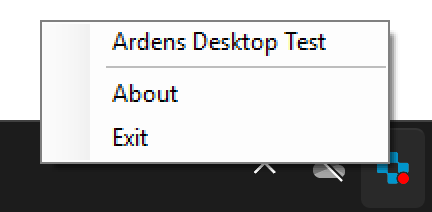
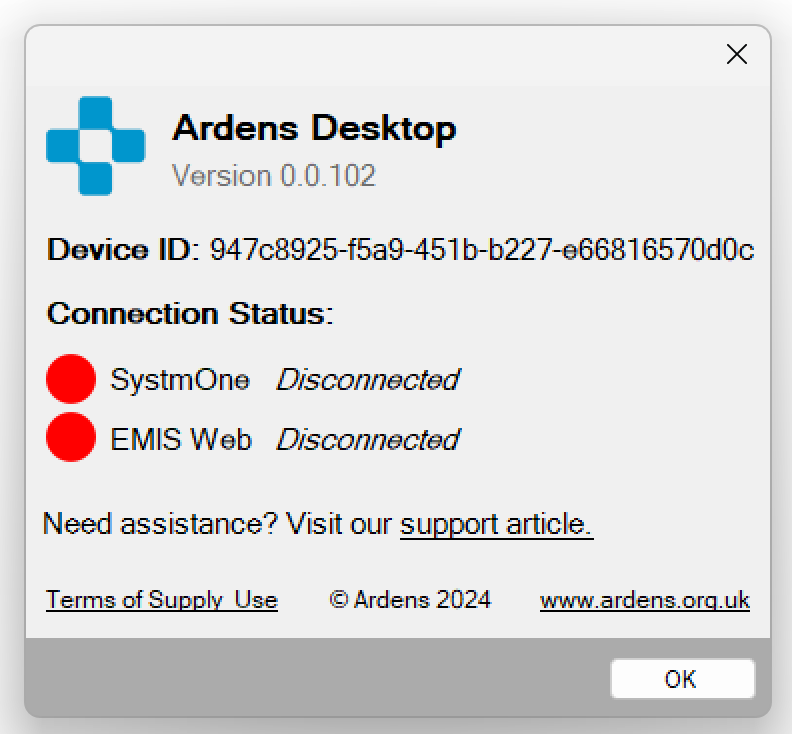
Ardens Desktop has a built-in connection status monitor; in your system tray you will find an Ardens icon with a corresponding green or red icon to show the overall status.

If you are using both SystmOne and EMIS Web you can click on this icon and select "About" which will allow you to view the status for each system.
Why is EMIS Web showing as disconnected?
This would suggest a connection issue on your local device. First, quit both EMIS Web & Ardens Desktop - this can be done by right clicking on the Ardens icon in your system tray. Then reopen Ardens Desktop from the Start menu followed by EMIS Web. Once you have logged into EMIS Web the connection should be restored. If you continue to experience issues, please contact support.
Why is SystmOne showing as disconnected?
This may be because Ardens Desktop has not been granted access to connect to your SystmOne device. First, quit both SystmOne & Ardens Desktop - this can be done by right clicking on the Ardens icon in your system tray. Then reopen Ardens Desktop from the Start menu followed by SystmOne. Once you have logged into SystmOne you should be presented with a pop up to approve the connection. If you continue to experience issues, please contact support.
How do I find my Device ID?
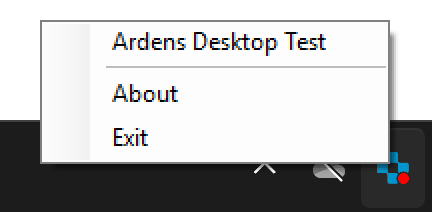
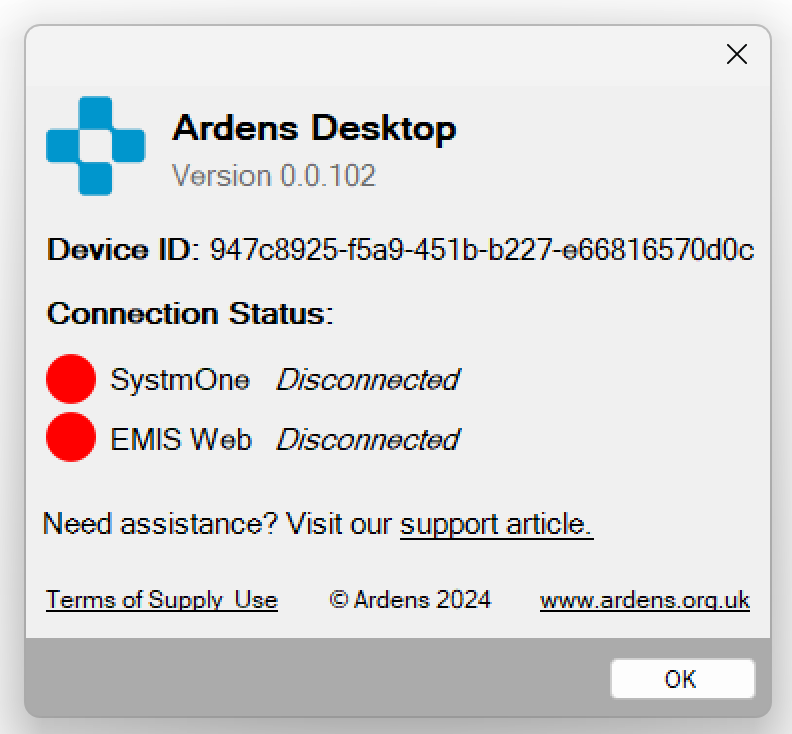
You may be asked by our Support team for your Device ID by our support team, this can be found by clicking on the Ardens icon in your system tray and selecting "About".
How do I locate the device logs for Ardens Manager?
You may be asked by our Support team to send your device logs to assist with troubleshooting. These files record the various interactions Ardens Desktop makes with your device, EMIS Web or SystmOne - no patient data is contained within them.
To locate these files follow the steps below:
1. Open File Explorer
2. Navigate to "Local Disk (C:)"
3. Open the "Users" folder
4. Open the folder with your username
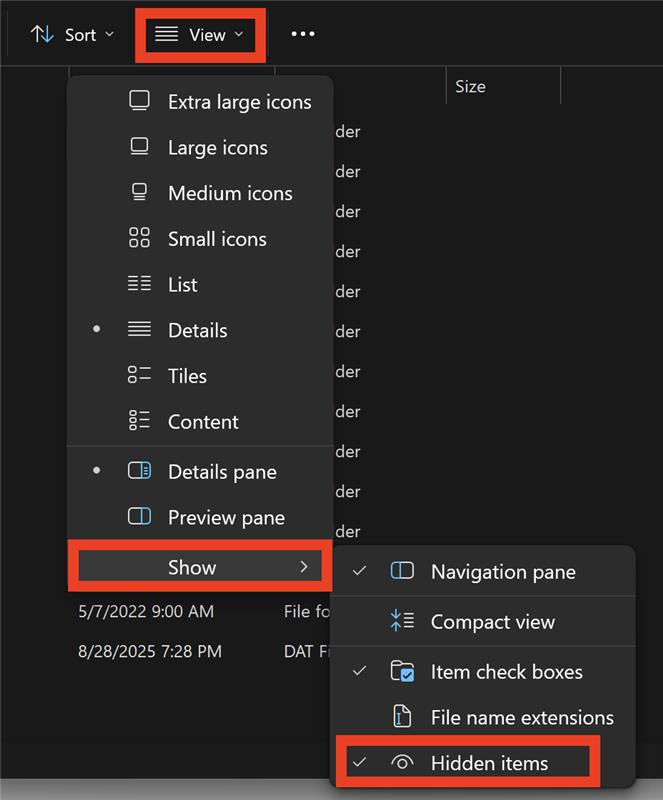
5. Enable "Hidden Items" in the View menu
6. Open the "AppData" folder
7. Open the "Local" folder
8. Open the "Ardens Desktop" folder
9. Open the "Logs" folder
10. Locate the file which contains todays date (note: it may be easier to sort by the "Date modified" column)
11. Copy this file into an email as requested by our Support team